How to Self-Host Navidrome with Docker
What Is Navidrome?
Navidrome is a lightweight, open-source music server that streams your personal music collection to any device. It’s compatible with the Subsonic API, meaning you can use dozens of existing music apps (DSub, Symfonium, Ultrasonic, Sublime Music, play:Sub) as clients. Think of it as your own self-hosted Spotify — but for music you actually own.
Prerequisites
- A Linux server (Ubuntu 22.04+ recommended)
- Docker and Docker Compose installed (guide)
- 512 MB of free RAM (minimum)
- Disk space for your music library
- A domain name (optional, for remote access)
Docker Compose Configuration
Create a directory for Navidrome:
mkdir -p /opt/stacks/navidrome
cd /opt/stacks/navidrome
Create a docker-compose.yml file:
services:
  navidrome:
    image: deluan/navidrome:0.60.3
    container_name: navidrome
    restart: unless-stopped
    user: "1000:1000"
    ports:
      - "4533:4533"
    environment:
      # Scanner settings
      ND_SCANNER_SCHEDULE: "1h"          # How often to scan for new music (e.g., 1h, 30m, @every 24h)
      ND_LOGLEVEL: "info"                # Log verbosity: error, warn, info, debug, trace
      ND_SESSIONTIMEOUT: "24h"           # How long login sessions last
      ND_BASEURL: ""                     # Set if running behind a reverse proxy subpath (e.g., /music)
      # Transcoding
      ND_ENABLETRANSCODINGCONFIG: "true" # Allow users to configure transcoding in the UI
      ND_DEFAULTLANGUAGE: "en"           # Default UI language
    volumes:
      - ./data:/data                     # Navidrome database and cache
      - /path/to/your/music:/music:ro    # Your music library (read-only)
Important: Change /path/to/your/music to the actual path where your music files are stored. The :ro (read-only) flag is recommended since Navidrome only needs to read your music files, not modify them.
Start the stack:
docker compose up -dInitial Setup
- Open
http://your-server-ip:4533in your browser - Create an admin account on the first-run screen — this becomes the server owner
- Navidrome immediately starts scanning your music library
- Once the scan completes, your music appears in the web UI
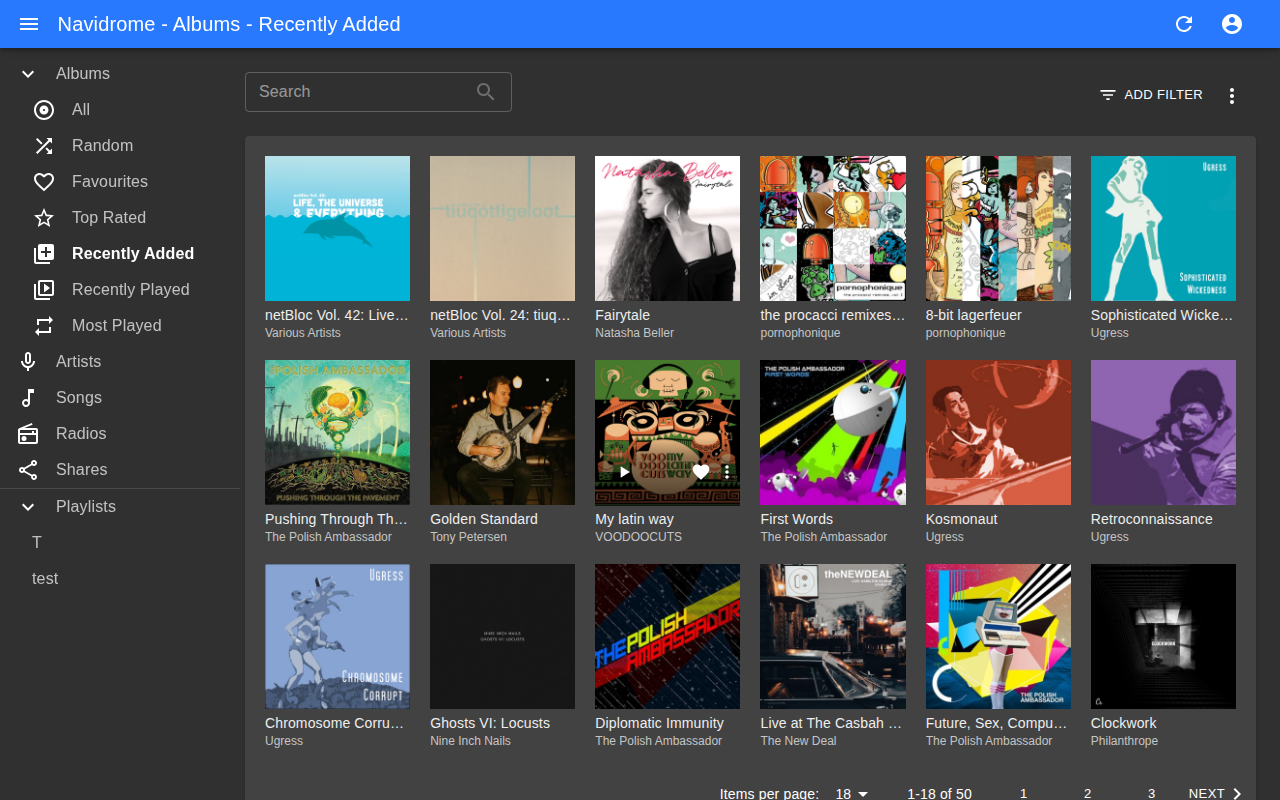
The web UI is a full-featured music player. You can browse by artist, album, genre, or playlist. Playback happens directly in the browser.
Configuration
Key Environment Variables
| Variable | Default | Description |
|---|---|---|
ND_SCANNER_SCHEDULE | @every 1m | How often to scan for new files. Set to 1h or 24h for large libraries. |
ND_LOGLEVEL | info | Logging level. Use debug for troubleshooting. |
ND_SESSIONTIMEOUT | 24h | Session duration before requiring re-login. |
ND_BASEURL | "" | Base URL path if behind a reverse proxy subpath. |
ND_ENABLETRANSCODINGCONFIG | true | Allow transcoding configuration in the UI. |
ND_ENABLESHARING | false | Allow users to create shareable links to songs/albums. |
ND_ENABLESTARRATING | true | Enable star ratings on tracks and albums. |
ND_DEFAULTLANGUAGE | en | Default UI language (en, pt, de, es, fr, etc.). |
ND_AUTOIMPORTPLAYLISTS | true | Auto-import .m3u playlists found in the music directory. |
ND_ENABLEGRAVATAR | false | Use Gravatar for user avatars. |
Music Library Organization
Navidrome works best with a well-organized library:
/music/
├── Artist Name/
│   ├── Album Name (Year)/
│   │   ├── 01 - Track Name.flac
│   │   ├── 02 - Track Name.flac
│   │   └── cover.jpg
Navidrome reads metadata (ID3 tags, Vorbis comments) from your files. If your files have good tags, organization doesn’t matter as much — but clean folder structure helps with browsing.
Multi-User Support
Navidrome supports multiple users out of the box. Each user gets their own:
- Play history and statistics
- Star ratings and favorites
- Playlists
- Transcoding preferences
Create additional users in Settings → Users.
Connecting Mobile Apps
Navidrome implements the Subsonic API, which means it works with any Subsonic-compatible client:
| Platform | Recommended App | Notes |
|---|---|---|
| Android | Symfonium | Paid, excellent quality. Best Android option. |
| Android | Ultrasonic | Free, open-source. Available on F-Droid. |
| iOS | play:Sub | Paid, solid Subsonic client. |
| iOS | Amperfy | Free, open-source. |
| Desktop | Sublime Music | Linux desktop client. |
| Desktop | Web UI | Built-in, works in any browser. |
To connect a client, enter your Navidrome server URL (http://your-server-ip:4533), username, and password. The app handles the rest via the Subsonic API.
Reverse Proxy
For remote access with HTTPS, put Navidrome behind a reverse proxy. Example Nginx Proxy Manager configuration:
- Scheme:
http - Forward Hostname/IP:
navidrome(or server IP) - Forward Port:
4533 - SSL: Enable, request Let’s Encrypt certificate
For Caddy:
music.example.com {
    reverse_proxy localhost:4533
}
See Reverse Proxy Setup for complete instructions.
Backup
Back up the ./data directory. This contains:
- The SQLite database (user accounts, playlists, play counts, ratings)
- Album art cache
Your music files are the source of truth and should be backed up separately. See Backup Strategy for a complete approach.
# Simple backup
cp -r /opt/stacks/navidrome/data /backups/navidrome-$(date +%F)
Troubleshooting
Music not appearing after adding files
Symptom: You added music files but they don’t show up in the UI.
Fix: Wait for the next scan cycle (based on ND_SCANNER_SCHEDULE), or trigger a manual scan from Settings → Scan. For large libraries, the initial scan can take 10-30 minutes.
Permission denied errors on music files
Symptom: Navidrome logs show permission errors when trying to read music files.
Fix: Ensure the user setting in Docker Compose matches the UID/GID that owns your music files. Check with ls -ln /path/to/music. If your files are owned by UID 1000, use user: "1000:1000".
High CPU during scan
Symptom: CPU spikes every time the scanner runs.
Fix: Increase ND_SCANNER_SCHEDULE to a longer interval (e.g., 24h instead of 1m). The default scans every minute, which is excessive for most libraries.
Transcoding not working
Symptom: Transcoding fails or streams play at original quality only.
Fix: Navidrome uses ffmpeg for transcoding, which is bundled in the Docker image. Ensure ND_ENABLETRANSCODINGCONFIG is true, then configure transcoding profiles in the admin UI under Settings → Transcoding.
Subsonic API clients can’t connect
Symptom: Mobile apps fail to authenticate with Navidrome.
Fix: Ensure you’re using the correct server URL (include the port: http://ip:4533). Some older clients use legacy Subsonic authentication — Navidrome supports both legacy and token-based auth. If behind a reverse proxy, ensure WebSocket connections are proxied correctly.
Resource Requirements
- RAM: ~50 MB idle, ~100-150 MB during library scans
- CPU: Minimal for direct play. Moderate during transcoding (one stream ≈ 0.5 CPU core).
- Disk: ~50 MB for the application. Database grows with library size (roughly 1 MB per 1,000 tracks).
Navidrome is one of the lightest music servers available. It runs comfortably on a Raspberry Pi.
Verdict
Navidrome is the best self-hosted music server for most people. It’s lightweight, fast, has a clean web UI, and supports the Subsonic API — giving you access to dozens of polished mobile apps. If you have a personal music collection and want to stream it from anywhere, Navidrome is the answer.
The main limitation is that it’s music-only. If you need video streaming too, look at Jellyfin instead. For a music-specific server with more features (but heavier resource usage), consider Jellyfin’s music capabilities or Funkwhale for social music sharing.
Frequently Asked Questions
What mobile apps work with Navidrome?
Navidrome supports the Subsonic API, which gives you access to dozens of third-party music apps. The best options: Symfonium (Android, $5 one-time, best UI and features), play:Sub (iOS, $5), Subtracks (Android, free and open-source), Amperfy (iOS, free and open-source). All support offline caching, scrobbling, and background playback. Set the Subsonic server URL to your Navidrome address and log in with your Navidrome credentials.
Does Navidrome support FLAC and high-resolution audio?
Yes. Navidrome supports FLAC, ALAC, WAV, AIFF, Opus, Vorbis, MP3, AAC, and WMA. High-resolution files (24-bit, 96/192 kHz) are served as-is when the client supports direct playback. For clients that cannot handle the format or bandwidth, Navidrome transcodes on-the-fly to a format the client requests (typically MP3 or Opus at a lower bitrate). Transcoding uses FFmpeg under the hood.
Can multiple users share the same Navidrome instance?
Yes. Navidrome supports multiple user accounts, each with their own playlists, play history, favorites, and star ratings. All users share the same music library. Create additional users from the admin interface. Each user gets their own login credentials for both the web UI and mobile apps.
How much disk space does Navidrome use?
Navidrome itself uses under 100 MB. The database (metadata, playlists, play history) grows slowly — typically under 500 MB even for large libraries. Your music files are the real disk consumer. A 10,000-song FLAC library averages 300-500 GB. Navidrome does not duplicate your files — it reads them directly from the mounted music directory.
Does Navidrome support lyrics?
Yes. Navidrome reads embedded lyrics from music file metadata (both synced/timed lyrics and unsynced plain text). It also supports fetching lyrics from external sources. Most Subsonic-compatible mobile apps display lyrics during playback if they are available.
How do I scrobble plays to Last.fm?
Enable Last.fm scrobbling in your user settings within the Navidrome web UI. Enter your Last.fm credentials and Navidrome will scrobble plays automatically for all clients — both the web interface and Subsonic API clients. Plays are scrobbled when you listen to at least 50% of a track or 4 minutes, whichever comes first.
Related
- Navidrome vs Plex for Music: Which to Self-Host?
- Ampache vs Navidrome: Which Music Server to Self-Host?
- Emby vs Navidrome: Which Music Server to Self-Host?
- Funkwhale vs Navidrome: Which Music Server?
- Jellyfin vs Navidrome for Music: Which to Self-Host?
- Koel vs Navidrome: Which Music Server to Pick?
- Mopidy vs Navidrome: Which Music Server to Self-Host?
- Navidrome vs Airsonic: Which Music Server?
- Navidrome vs Ampache: Self-Hosted Music Servers
- Navidrome vs Gonic: Which Music Server to Self-Host?
- Navidrome vs Plexamp: Self-Hosted Music Showdown
- Best Self-Hosted Media Servers
- How to Self-Host Jellyfin
- How to Self-Host Plex
- How to Self-Host Emby
- Jellyfin vs Plex
- Navidrome vs Subsonic
- Navidrome vs Emby
- Plex vs Navidrome
- Navidrome vs Funkwhale
- Gonic vs Navidrome
- Navidrome vs Jellyfin
- Self-Hosted Spotify Alternative
- Self-Hosted Alternatives to Amazon Music
- Self-Hosted Alternatives to Tidal
- Docker Compose Basics
- Reverse Proxy Setup
- Backup Strategy
- Navidrome vs Plex Music
Get self-hosting tips in your inbox
Get the Docker Compose configs, hardware picks, and setup shortcuts we don't put in articles. Weekly. No spam.
Comments